
A GUI piece wise linear waveform editor.
Piece wise linear (PWL) waveforms are commonly used in SPICE simulations. It can be used to approximate a complex signal source at the input of the circuit. It is also used when simulating a load step at the output of the circuit. SPICE simulators only takes text input and the PWL waveforms becomes a long string of text. While it is possible to store the PWL waveform in another file, we still need to edit it as a text file. The editing process is non-intuitive and typically requires going back and forth between the editor and simulator a few times to get the correct waveform.
To solve this issue, (Gemini and) I coded a GUI-based PWL waveform editor. The waveform is displayed on a graph as you edit it, so you can get a good idea of the actual waveform. The points on the PWL waveform can be dragged around with your mouse or given explicit coordinates with your keyboard. The waveform can be saved to a CSV file and loaded to the SPICE simulator.
Setup from source code.
First, clone the repository from my Github repository.
git clone https://github.com/light655/pwl_waveform_editor.git
Then, install the required Python packages.
pip3 install PySide6 pyqtgraph
Finally, run the program.
python3 main.py
Packaged application.
Sometimes, the SPICE server is cut-off from the internet and installing packages becomes a headache. Therefore, I packaged the application into a single zipped file containing all the required packages with Nuitka. The packaged application can be downloaded from the Github release page .
To install the packaged application, you only need to unzip the file and run main.bin on Linux systems or main.exe on Windows systems.
Usage.
After starting the program, you will see a blank canvas on which you can create the PWL waveform. The following hotkeys can be used to modify the points on the PWL waveform. These functions can also be accessed via the edit menu. SPICE unit multiplier is supported when typing in the coordinates.
- A - Add new point: type the coordinates of the new point.
- D - Remove selected point.
- M - Move selected point: type the coordinates of the new position of the point.
You can use your mouse to select and drag around a point on the PWL waveform. Note that when dragging a point, its x coordinate is limited between the two adjacent points to preserve the order of the points. You can also use your mouse to drag around and zoom in and out the canvas. There is a hidden button on the bottom left of the canvas, you can press it to centre the waveform on the canvas.
A Use Unit Multiplier option is implemented on the bottom left of the window. When checked, the coordinates displayed on the bottom right and exported into the CSV file will be formatted with SPICE unit multiplier. To import or export the waveform, please use the options in the file menu.
Loading PWL waveform into Ngspice/KiCad.
I use Cadence Virtuoso for my school projects and loading a PWL file is as simple as choosing the vpwlf or ipwlf symbol and entering the filename.
For projects outside of school, I use KiCad and Ngspice for simulation.
Loading a PWL waveform (stored in a file) into Ngspice is a bit more trickier.
We need to define a model using Filesource and wrap it in code model element [ref].
Please refer to the reference KiCad forum post for the wrapper code for PWL voltage source.
I need a current source in my simulation, so I will demonstrate how to create a PWL current source.
%i and %id represent a current source.
The former is single-ended, which has one node fixed to circuit ground.
The latter is differential, both nodes can be connected to user specified nodes.
We will use %id to create a more versatile current source.
.subckt i_load i_in i_out params: infile='infile'
a0 %id([i_in i_out]) filesrc
.model filesrc filesource (file='infile' amploffset=[0 0] amplscale=[1 1])
.ends
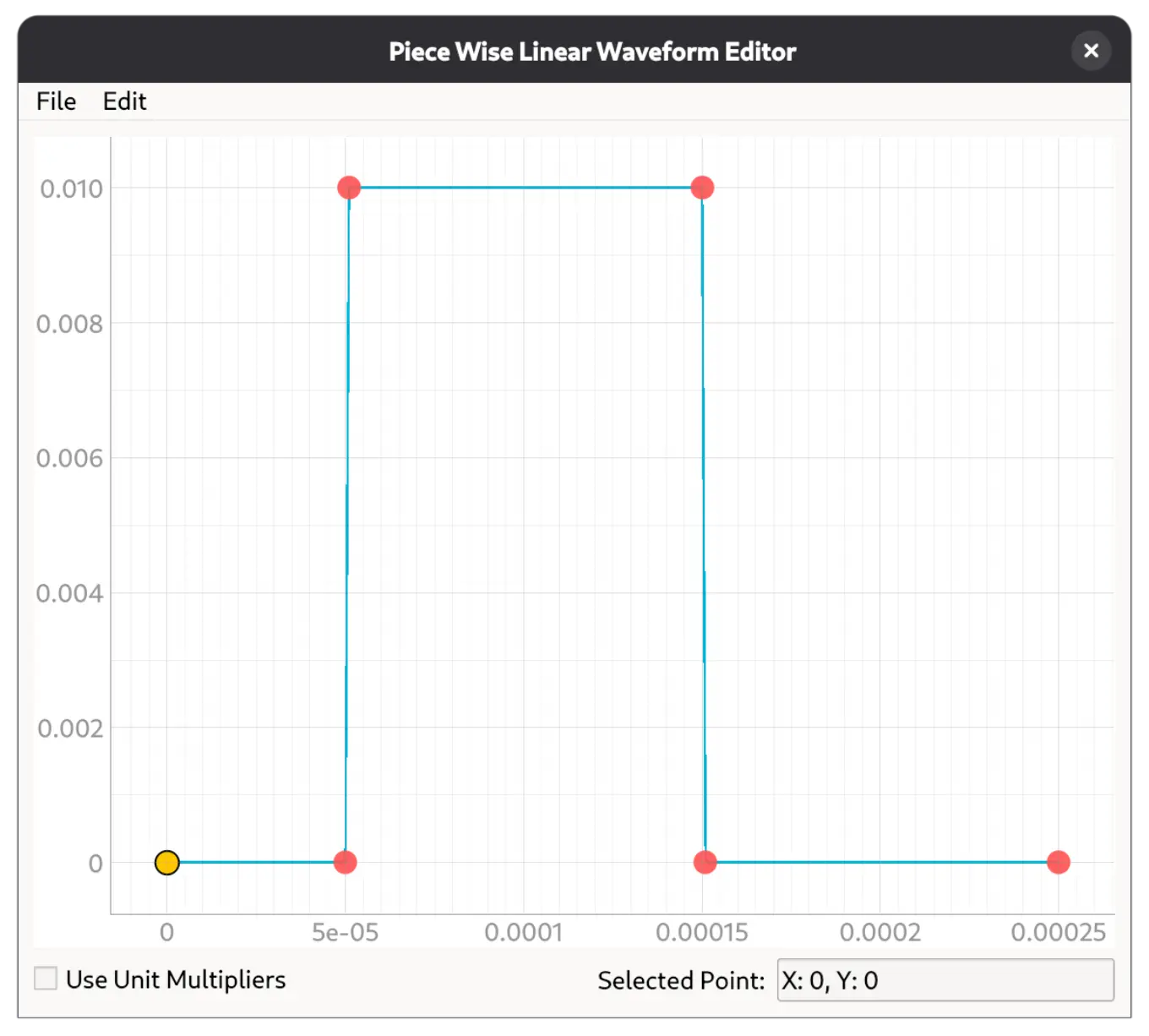
Next, we can create a waveform with the PWL waveform editor. I am going to simulate a load-step on the output of an opamp. The exported PWL waveform is shown below.
0,0
5e-05,0
5.1e-05,0.01
0.00015,0.01
0.000151,0
0.00025,0
I am trying to simulate the effect of putting capacitors at the output of an opamp. The circuit schematic for testing is shown below.
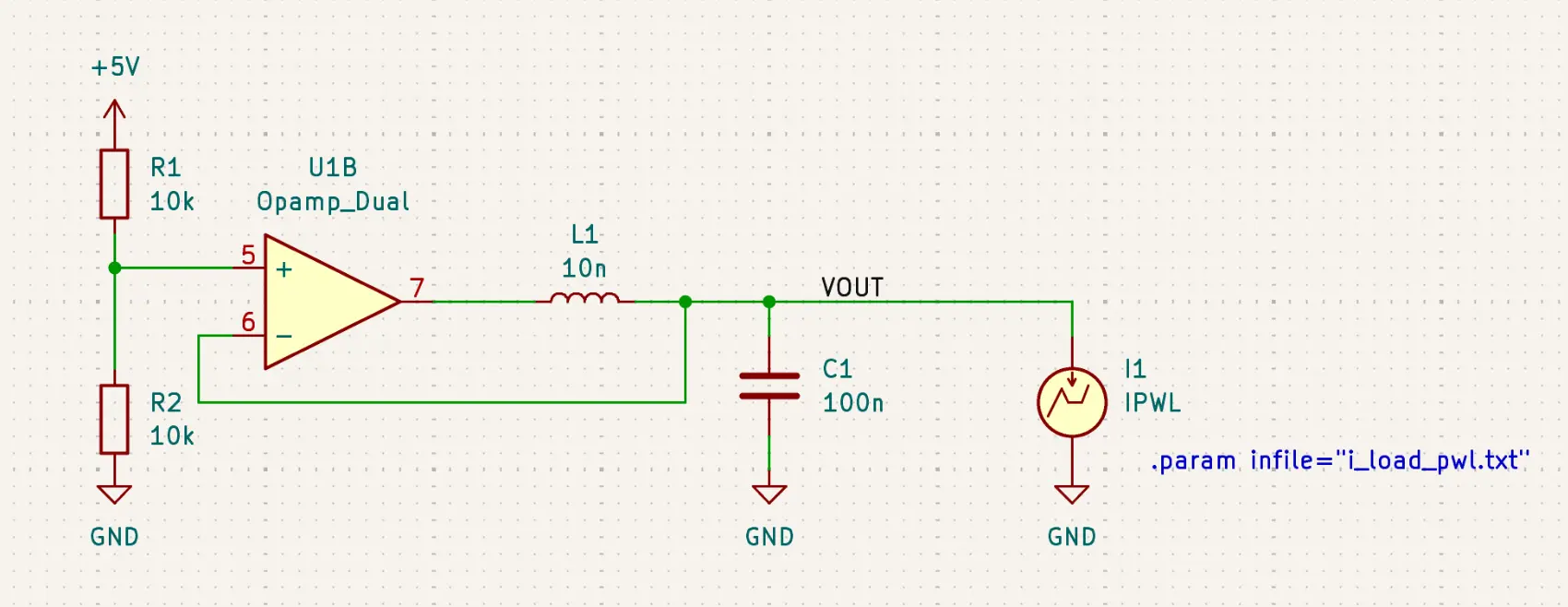
We can reuse the built-in PWL current source symbol in KiCad, but with some modifications.
First, delete the SPICE simulation parameters (the purple text below IPWL).
Next, change the simulation model to use the one we just created.
Set pin 1 of the symbol to i_in and pin 2 to i_out, and then positive current will flow in the direction of the arrow on the symbol.
Finally, add a text on the schematic and use .param infile="your file" to point the simulator to the file exported from the PWL waveform editor.
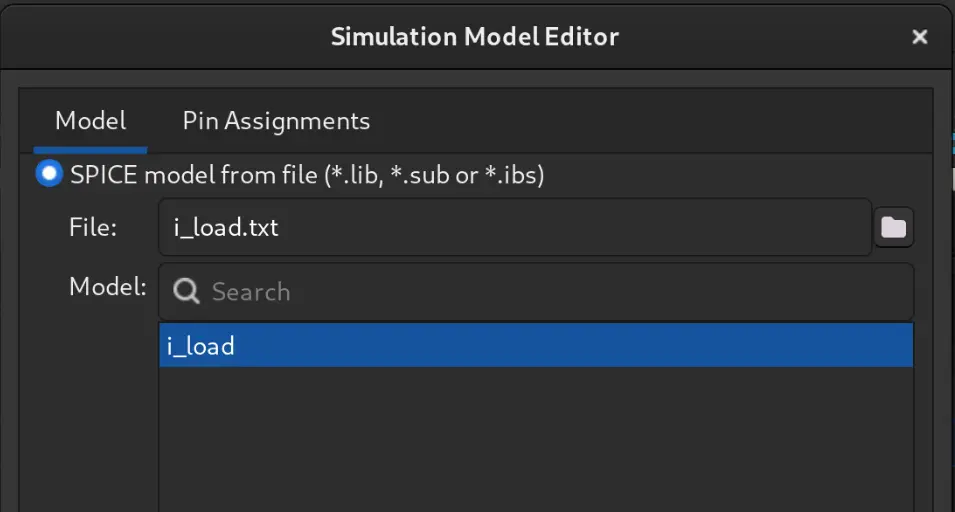
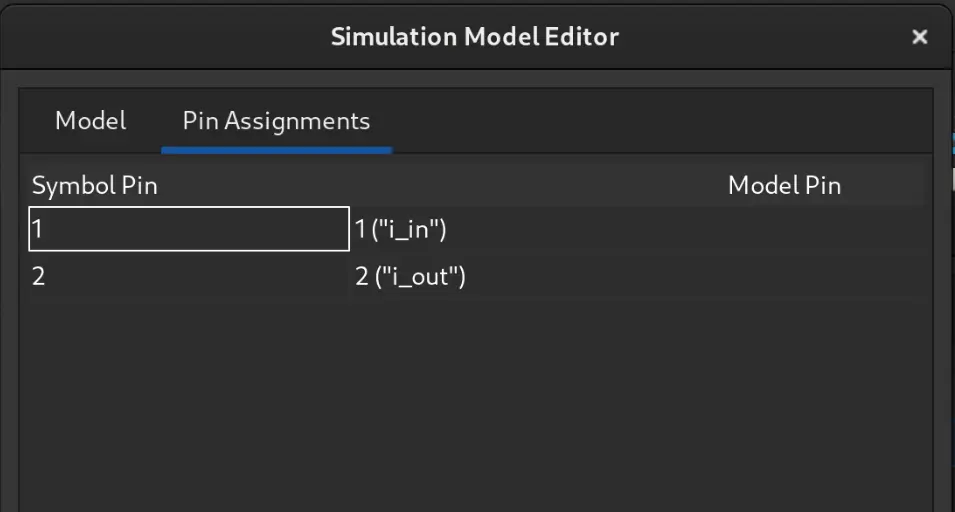
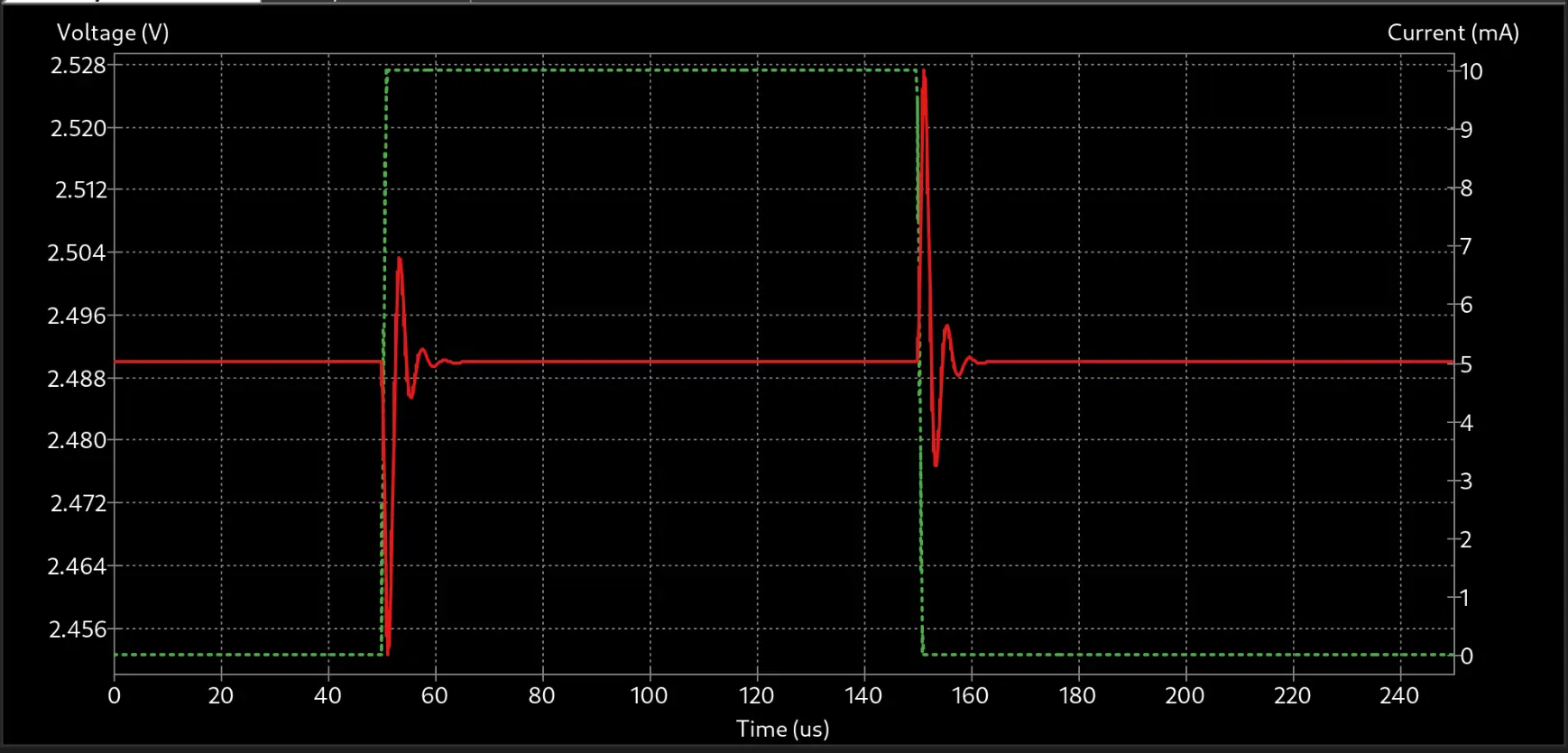
Setup a transient simulation in the simulator and we can verify the PWL pulse is correctly generated. Hopefully this tool is useful in your simulations!