Setting up VSCode for debugging STM32H755ZI dual-core microcontroller.
Debugging a dual-core STM32 microcontroller requires some effort to setup. In this article, I will briefly go over the process of setting up VSCode (with STM32Cube Extensions) to debug a dual-core STM32H755ZI microcontroller. The development board that I am using is the Nucleo-H755ZI, which has a built-in STLINK V3. I will focus on the problems that I ran into and the solutions to them.
Example project.
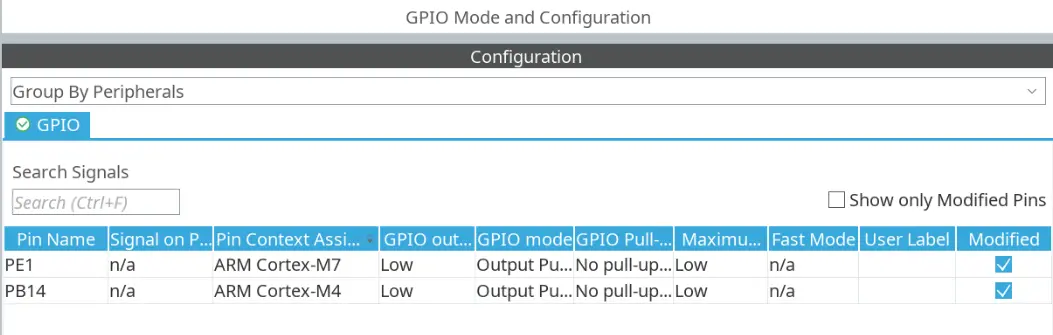
Let's setup a simple project for debugging. After selecting the STM32H755ZI CPU in CubeMX, we are only going to change a few settings. First, enable the two GPIOs that are connected to the LEDs on the Nucleo board, which are PB14 and PE1. We need to assign each of the pins to either of the cores [ref], as shown in the image below.
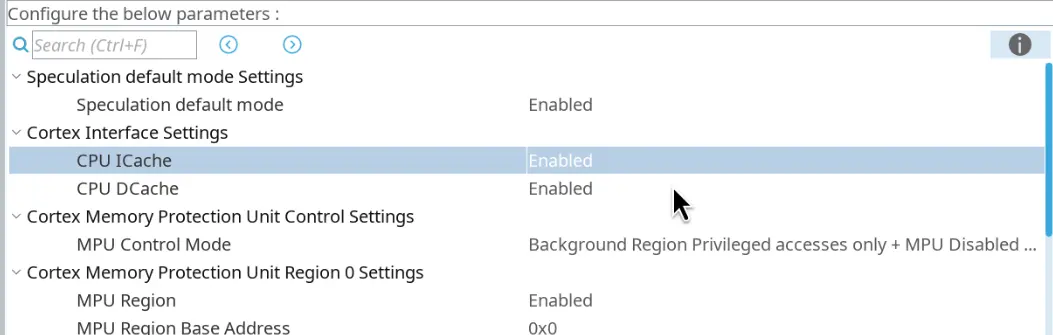
Next, enable the CPU ICache and CPU DCache on the Cortex M7 core, as shown in the image below.
I am going to leave the RCC settings as default, which uses the internal oscillator and runs the CPUs at 64 MHz. Finally, I will select CMake as the toolchain, so that we can build the binaries easily with VSCode.
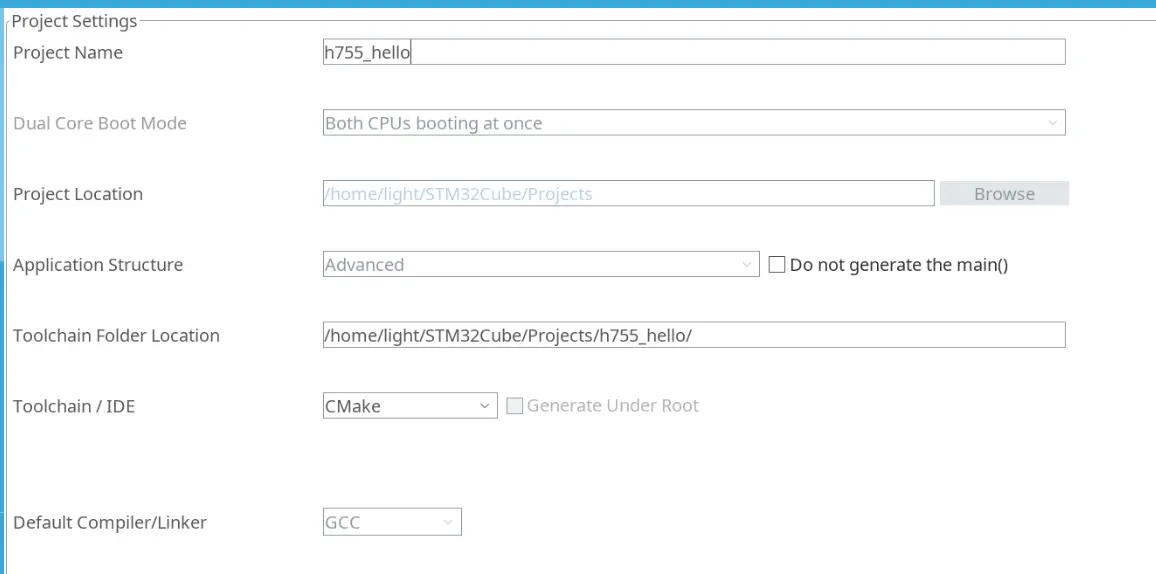
CubeMX will generate two folders named CM4 and CM7 under the selected directory, which contain the code to run the Cortex M4 and Cortex M7 cores, respectively.
In each of them, under the Core/Src directory, a main.c can be found.
After building the project, it will generate two binaries, which will run on either of the cores.
In both main.c, we are just going to blink an LED.
// inside main.c for M4
/* USER CODE BEGIN WHILE */
while (1)
{
    /* USER CODE END WHILE */

    /* USER CODE BEGIN 3 */
    // blink red LED
    HAL_GPIO_WritePin(GPIOB, GPIO_PIN_14, GPIO_PIN_SET);
    HAL_Delay(500);
    HAL_GPIO_WritePin(GPIOB, GPIO_PIN_14, GPIO_PIN_RESET);
    HAL_Delay(500);
}
/* USER CODE END 3 */
// inside main.c for M7
/* USER CODE BEGIN WHILE */
while (1)
{
    /* USER CODE END WHILE */

    /* USER CODE BEGIN 3 */
    // blink yellow LED
    HAL_GPIO_WritePin(GPIOE, GPIO_PIN_1, GPIO_PIN_SET);
    HAL_Delay(250);
    HAL_GPIO_WritePin(GPIOE, GPIO_PIN_1, GPIO_PIN_RESET);
    HAL_Delay(250);
}
/* USER CODE END 3 */
launch.json setup.
A Great tutorial post by B. Montanari shows an example of launch.json for debugging dual core STM32 microcontroller with VSCode.
He also explained the modification from the default launch.json in great detail.
The launch.json` that we are using is a slightly modified version, with the file names changed to match the example project.
{
    // Use IntelliSense to learn about possible attributes.
    // Hover to view descriptions of existing attributes.
    // For more information, visit: https://go.microsoft.com/fwlink/?linkid=830387
    "version": "0.2.0",
    "configurations": [
        {
            "type": "stlinkgdbtarget",
            "request": "launch",
            "name": "ST-LINK for M4",
            "origin": "snippet",
            "cwd": "${workspaceFolder}",
            // "preBuild": "${command:st-stm32-ide-debug-launch.build}",
            "runEntry": "main",
            "imagesAndSymbols": [   // extra
                {
                    "symbolFileName": "${workspaceFolder}/CM4/build/h755_hello_CM4.elf"
                }
            ],
            "serverShared": true,   // extra
            "serverApID": "3",      // extra
            "serverPort": "61239",  // extra
            "serverReset": "None"   // extra
        },
        {
            "type": "stlinkgdbtarget",
            "request": "launch",
            "name": "ST-LINK for M7",
            "origin": "snippet",
            "cwd": "${workspaceFolder}",
            "preBuild": "${command:st-stm32-ide-debug-launch.build}",
            "runEntry": "main",
            "imagesAndSymbols": [   // extra, beware of the order of the two .elf files
                {
                    "imageFileName": "${workspaceFolder}/CM4/build/h755_hello_CM4.elf"
                },
                {
                    "imageFileName": "${workspaceFolder}/CM7/build/h755_hello_CM7.elf"
                }
            ],
            "serverShared": true,       // extra
            "serverHaltAllCores": true  // extra
        }
    ],
    "compounds": [                      // extra
        {
            "name": "ST-LINK for M7+M4",
            "configurations": ["ST-LINK for M7", "ST-LINK for M4"]
        }
    ]
}
I will briefly explain the important settings, but please be sure to look at Montanari's post for more detail.
There are two configurations, the first one connects to the M4 core and the second one connects to the M7 core and flashes the program to both cores.
In the imagesAndSymbols attribute, we need to set the image or symbol file.
For the M4, we only set the symbol file, as its image is flashed by the M7 core.
For the M7, we set two image files, which will be flashed to M4 and M7 cores, respectively.
The blocks marked as extra in the above listing means that they are not in the VSCode-generated STLINK template launch.json.
If you use the generated template for the M4 configuration, be sure to comment out the preBuild attribute.
Otherwise, the binaries will be compiled twice and errors will occur.
Finally, since we need to launch two configurations, a compound is created to make our lives easier.
Start debugging!
To start debugging, go to the debug tab and select the ST-LINK for M7+M4 option. Remember to connect the Nucleo board to the computer with a USB cable.
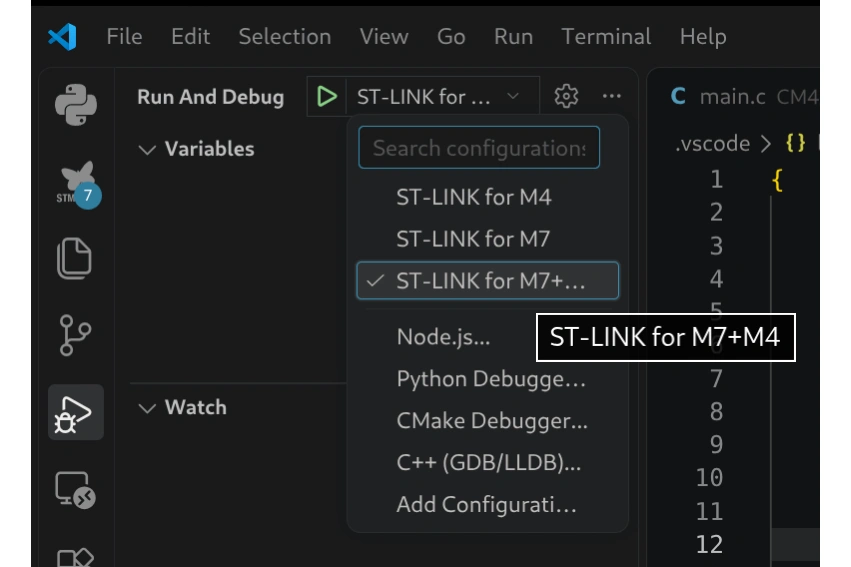
Then, click the green triangle to start debugging.
An ST-LINK GDB server will be started and the project will be rebuilt and flashed to the two cores.
At first, the Cortex M4 core will pause on the Reset_Handler or the entry point of the main() function.
I do not know why there are two possible points that the M4 core initially pauses at.
The Coretex M7 core will pause on the entry point of the main() function.
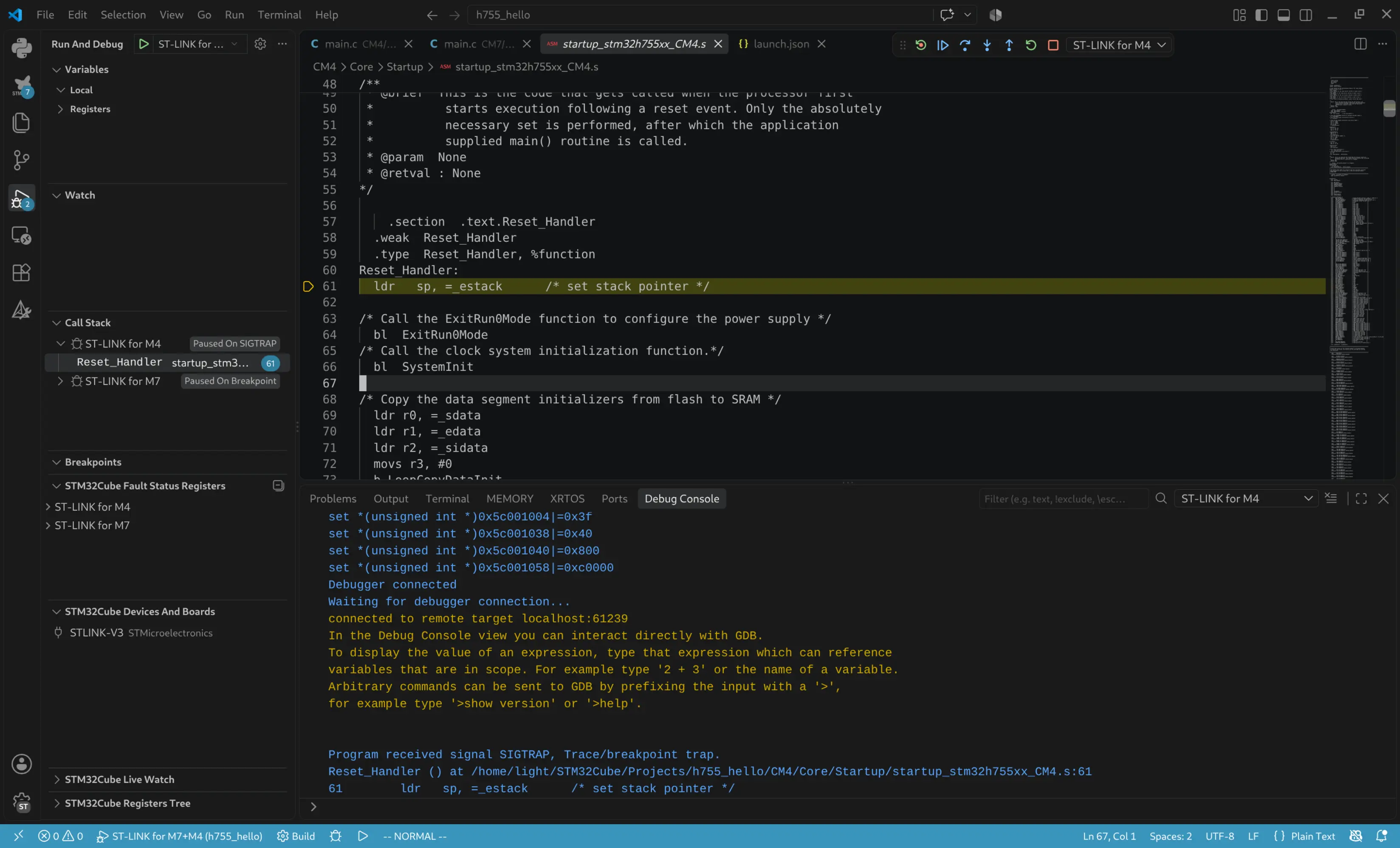
To start running the programs, we need to start the two cores in a specific order.
First, click continue for the M4 core.
If the M4 core paused again at the entry point of the main() function, click continue again.
The M4 core will show Paused On SIGTRAP, which is expected as it is stopped and waiting for the M7 core to start.
Next, click continue for the M7 core and the program will start running.
Otherwise, the M7 core will go into the Error_Handler() and the microcontroller will halt.
I recorded a video to show the process in detail, you can watch it here.
The reason behind this specific order is the boot sequence of the two cores.
The M4 core boots up first, but it needs to wait for the M7 core to finish setting up the system clock.
Therefore, the M7 core first waits for the M4 core to enter stop mode.
If the M4 core does not enter stop mode within a timeout, the M7 core jumps to the Error_Handler().
This happens if the M7 core starts running first, while we still haven't started the M4 core.
// code generated by CubeMX
#if defined(DUAL_CORE_BOOT_SYNC_SEQUENCE3)
    /* Wait until CPU2 boots and enters in stop mode or timeout*/
    timeout = 0xFFFF;
    while((__HAL_RCC_GET_FLAG(RCC_FLAG_D2CKRDY) != RESET) && (timeout-- > 0));
    if ( timeout < 0 )
    {
    Error_Handler();
    }
#endif /* DUAL_CORE_BOOT_SYNC_SEQUENCE */
Troubleshooting guide.
- The order of the two image files in
launch.jsonis crucial. It must be M4 first, M7 second. Otherwise, the STM32 will be bricked. - Don't put breakpoints on the two lines that enable the M7 caches. Also, don't try to single-step through these functions, it will cause the CPU to hang [ref].
- If you are getting
connection timeoutorUnable to get core ID[ref] errors, try swapping the USB cable. - If you see the error message
No device found on target.[ref] ordoStepSettingsValidation Failed: Core not found, that means your STM32 is probably bricked due to flashing the wrong image. - If you see the error message
build failed with code -1, stdout: , stderr:, check if the project is compiled twice inlaunch.json.
Accidentally bricking the STM32?
If the STM32 is accidentally bricked, we can use the BOOT0 pin to make the STM32 bypass the binaries that we've flashed.
- Make sure the order of the image files in
launch.jsonis correct. - Short BOOT0 to 3.3V on the STM32, which is third and forth pins on the left-most row of pins. I use tweezers to short them.
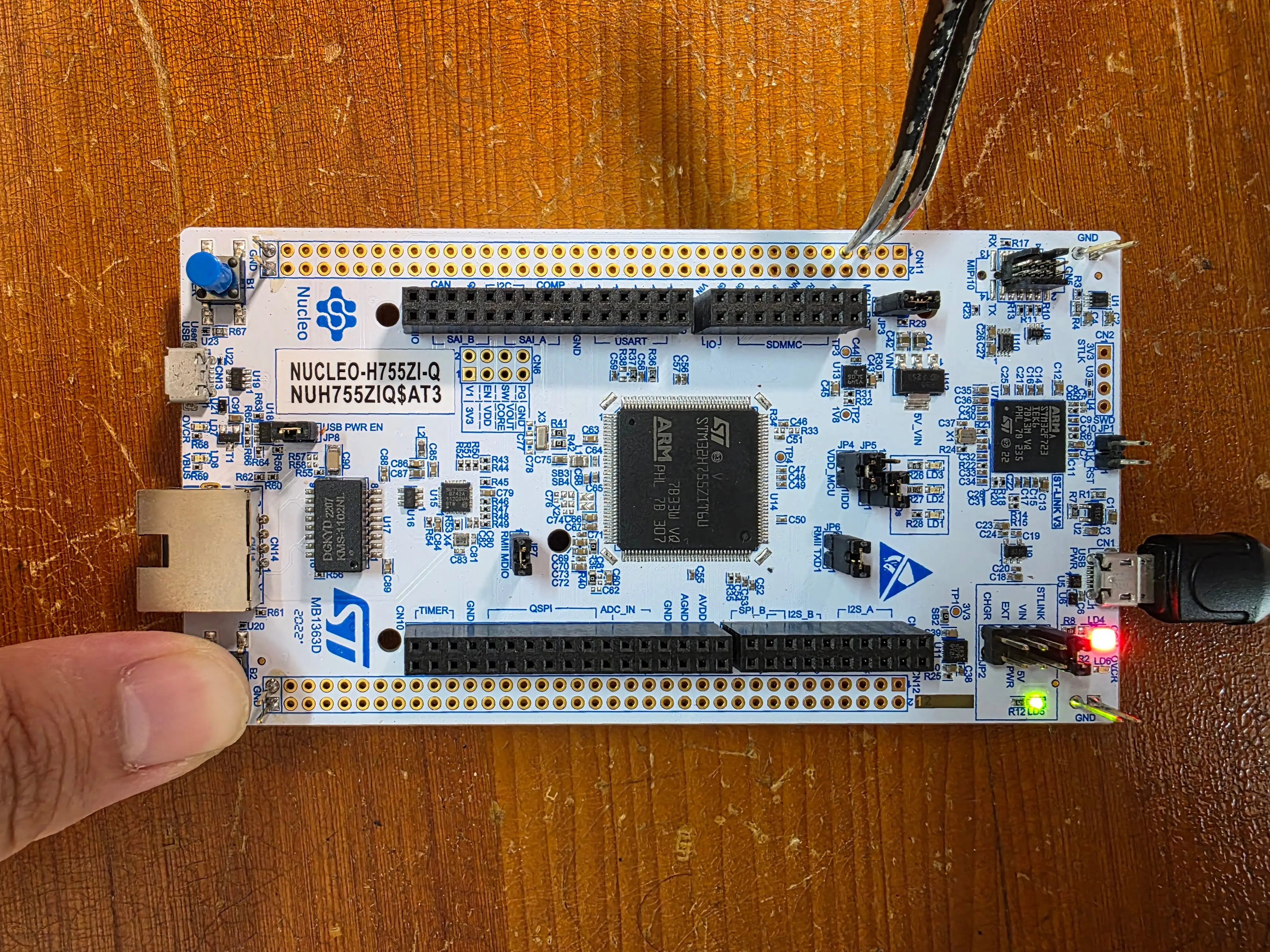
- Press the reset button.
- Remove the short between BOOT0 and 3.3V.
- Flash the STM32 with the correct debugger settings.
References
- Great tutorial video by ControllersTech on debugging dual core STM32s with CubeIDE.
- Great tutorial post by B. Montanari on debugging dual core STM32s with VSCode.
- VSCode STM32 debugging launch.json reference by Nawres Gharbi.
- ST Community post Debugger hangs at SCB_EnableDCache();
- ST Community post Error : Unable to get core ID
- ST Community post Error in initializing ST-LINK device. Reason: No device found on target.(Stm32H755)